
Navigating a MySQL database efficiently often requires understanding its structure. Therefore, knowing how to List (Show) Tables in a MySQL Database is a fundamental skill for developers and database administrators alike. This essential operation allows you to quickly inspect the contents of a database, helping you manage data, troubleshoot issues, and develop applications effectively. Before you can interact with data, you must first know which tables exist.
Introduction to Listing MySQL Database Tables
Understanding the tables within your MySQL database is the first step towards effective data management. This process, often referred to as “listing tables” or “showing tables,” provides a clear overview of your database’s organization. It helps you identify existing data structures and plan your queries more accurately. Furthermore, knowing how to efficiently List (Show) Tables in a MySQL Database is crucial for maintaining database integrity.
Why You Need to List Tables in MySQL
Listing tables serves multiple critical purposes in database administration and development. Firstly, it helps in verifying database schema during development or deployment. Secondly, it assists in debugging by confirming table existence before executing complex queries. Moreover, understanding your table landscape is vital for security audits and performance tuning.
For instance, you might need to check if a new table was successfully created or if an old one still exists. This simple command prevents errors and saves valuable development time. It also provides a quick way to get acquainted with an unfamiliar database. Therefore, mastering table listing commands is indispensable.
Understanding MySQL Database Structure and Terminology
A MySQL database is a collection of structured data, organized into tables. Each table consists of rows and columns, designed to store specific types of information. A database can contain numerous tables, each serving a distinct purpose. Consequently, knowing the names of these tables is paramount.
Key terms include “schema,” which refers to the logical structure of the database, and “database,” which is a container for tables. When you List (Show) Tables in a MySQL Database, you are essentially asking the database to reveal the names of its internal containers. This foundational knowledge empowers you to interact with your data effectively.
Basic-methods-to-list-show-tables-in-a-mysql-database">Basic Methods to List (Show) Tables in a MySQL Database
MySQL offers several straightforward commands to display tables within your databases. These methods are simple to use and provide quick results, making them ideal for everyday tasks. Understanding these basic commands is essential for any database user. They form the foundation for more complex database interactions.
Using the `SHOW TABLES` Command for Current Database
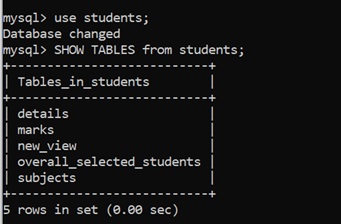
The most common and simplest way to List (Show) Tables in a MySQL Database is by using the `SHOW TABLES;` command. This command, when executed, displays all tables present in the currently selected database. It’s incredibly useful for a quick overview of your working environment.
First, you must select a database using the `USE database_name;` command. Afterward, simply type `SHOW TABLES;` and press Enter. The output will be a list of all table names, clearly presented in your terminal. This method is fast and efficient for direct database interaction.
Filtering Tables with the `LIKE` Clause
Sometimes, you might only be interested in tables whose names match a specific pattern. The `SHOW TABLES` command supports a `LIKE` clause for this very purpose. This allows for more targeted searches, saving you time and effort.
For example, to find all tables starting with “user”, you would use `SHOW TABLES LIKE ‘user%’;`. The `%` acts as a wildcard, matching any sequence of characters. This powerful filtering capability helps you quickly pinpoint relevant tables among many. It significantly improves efficiency when you need to List (Show) Tables in a MySQL Database with specific naming conventions.
Displaying Tables from a Specific Database
You do not always need to `USE` a database explicitly to view its tables. You can specify the database name directly with the `SHOW TABLES` command. This approach is beneficial when working with multiple databases simultaneously.
The syntax for this is `SHOW TABLES FROM database_name;`. For instance, `SHOW TABLES FROM my_app_db;` would display all tables within the `my_app_db` database. This command offers flexibility and convenience, especially for administrators managing several schemas. It streamlines the process of how to List (Show) Tables in a MySQL Database across your server.
Advanced Techniques to List MySQL Tables
While `SHOW TABLES` is excellent for quick checks, more detailed information about your database tables can be retrieved using advanced techniques. These methods involve querying MySQL’s internal metadata, providing comprehensive insights. They are particularly useful for complex database management tasks.
Querying `information_schema.TABLES` for Detailed Information
For a truly comprehensive view, querying the `information_schema.TABLES` table is the go-to method. The `information_schema` is a special database that provides access to database metadata. It contains information about all databases, tables, columns, and other objects on the MySQL server.
A basic query like `SELECT TABLE_SCHEMA, TABLE_NAME FROM information_schema.TABLES;` will list all tables across all databases. This powerful approach allows you to retrieve much more than just table names. You can access creation times, engine types, and more, which is invaluable for database auditing.
Filtering `information_schema` Results by Schema and Table Type
The `information_schema.TABLES` table can return a vast amount of data. Therefore, filtering is crucial to extract specific information. You can easily narrow down results by database name (schema) and table type.
For example, to list only base tables in a specific database, you might use:
SELECT TABLE_NAME
FROM information_schema.TABLES
WHERE TABLE_SCHEMA = 'your_database_name'
AND TABLE_TYPE = 'BASE TABLE';Understanding `information_schema` Columns (e.g., `TABLE_SCHEMA`, `TABLE_NAME`)
The `information_schema.TABLES` table contains several important columns that provide rich metadata. Understanding these columns is key to leveraging this powerful resource. Each column offers a specific piece of information about your tables.
- `TABLE_SCHEMA`: This column indicates the name of the database (schema) to which the table belongs. It’s essential for filtering.
- `TABLE_NAME`: This provides the actual name of the table. It is the primary identifier for each table.
- `TABLE_TYPE`: This specifies whether the table is a `BASE TABLE` (a regular table) or a `VIEW`. This distinction is important for understanding data sources.
- `ENGINE`: This shows the storage engine used by the table (e.g., InnoDB, MyISAM). Different engines have different capabilities and performance characteristics.
These columns, among others, offer a detailed perspective on your database’s structure. They go far beyond simply listing table names, providing a deep dive into table properties. This level of detail is critical for advanced database administration tasks.
Listing Tables with MySQL Client Tools
Beyond direct SQL commands, various client tools provide user-friendly interfaces to List (Show) Tables in a MySQL Database. These tools often simplify complex operations and offer visual representations of your database structure. They cater to different user preferences and technical skill levels.
Using MySQL Shell and Command Line Interface
The MySQL Shell and traditional command-line client (CLI) remain popular choices for interacting with MySQL. The CLI allows direct execution of SQL commands, including `SHOW TABLES;`. It is lightweight and offers powerful scripting capabilities.
MySQL Shell, a more modern client, provides enhanced features, including JavaScript and Python modes. In SQL mode, you can still use `SHOW TABLES;` or `SELECT TABLE_NAME FROM information_schema.TABLES;`. These command-line tools are favored by developers for their speed and flexibility. They are indispensable for quick checks and automated tasks.
Listing Tables in phpMyAdmin and Other GUI Tools
Graphical User Interface (GUI) tools like phpMyAdmin, MySQL Workbench, and DBeaver offer intuitive ways to manage databases. These tools present database structures visually, making it easy to browse tables. They are particularly helpful for users who prefer a visual approach over command-line interfaces.
In phpMyAdmin, after selecting a database, a list of its tables is usually displayed automatically in the main panel. Similarly, MySQL Workbench provides a “Navigator” pane where you can expand database schemas to view tables. These tools simplify the process of how to List (Show) Tables in a MySQL Database significantly. They reduce the need to memorize specific commands.
Programmatic Listing of Tables (e.g., Python, PHP)
For application developers, listing tables programmatically is a common requirement. Most programming languages offer database connectors that allow execution of SQL queries. This enables dynamic retrieval of table names within an application.
- Python (with `mysql-connector-python`): Connect to the database, create a cursor, execute `SHOW TABLES;` or `SELECT TABLE_NAME FROM information_schema.TABLES;`, then fetch the results.
- PHP (with PDO or MySQLi): Establish a database connection, prepare and execute the `SHOW TABLES;` query, and then loop through the results.
- Node.js (with `mysql2`): Connect to MySQL, execute the query, and process the returned rows.
Programmatic listing is crucial for building dynamic database-driven applications. It allows applications to adapt to changing database schemas. This flexibility is key in modern software development. For more information on `information_schema`, you can visit its official MySQL documentation.
Understanding Table Information and Metadata
Beyond merely listing table names, MySQL provides commands to retrieve detailed metadata about each table. This information is vital for understanding table structure, performance, and storage characteristics. It helps in making informed decisions about database design and optimization.
Retrieving Table Schema Details with `SHOW CREATE TABLE`
The `SHOW CREATE TABLE table_name;` command is incredibly useful for understanding how a table was originally defined. It returns the exact `CREATE TABLE` statement used to construct the table. This includes column definitions, indexes, primary keys, and storage engine details.
This command is invaluable for replicating table structures or for auditing existing schemas. It provides a complete blueprint of the table’s design. Consequently, it’s a powerful tool for developers and DBAs. It offers a deeper insight than simply knowing how to List (Show) Tables in a MySQL Database.
Analyzing Table Status and Engine Information (`SHOW TABLE STATUS`)
To get a summary of a table’s operational status and storage engine details, use `SHOW TABLE STATUS LIKE ‘table_name’;`. This command provides a wealth of information. It includes the table’s name, engine, version, row format, row count, data length, and index length.
This data is crucial for performance monitoring and capacity planning. For example, knowing the `Engine` helps in understanding transaction support and locking mechanisms. The `Data_length` and `Index_length` provide insights into storage consumption. This command is essential for optimizing database performance.
Inspecting Column Definitions with `DESCRIBE` or `SHOW COLUMNS`
Once you have identified a table, you often need to know its column structure. The `DESCRIBE table_name;` or `SHOW COLUMNS FROM table_name;` commands fulfill this need. They display each column’s name, data type, nullability, key information, default value, and extra attributes.
This information is fundamental for constructing correct SQL queries and understanding data types. It prevents errors related to incorrect data insertion or retrieval. Therefore, these commands are indispensable for anyone working with table data. They complete the picture after you List (Show) Tables in a MySQL Database.
Troubleshooting Common Issues When Listing Tables
While listing tables is generally straightforward, users can occasionally encounter issues. Understanding these common problems and their solutions is crucial for smooth database operations. Effective troubleshooting saves time and reduces frustration.
Permissions Errors and How to Resolve Them
One of the most frequent issues is encountering permission errors. If your MySQL user account lacks the necessary privileges, you will not be able to view tables. This is a security measure to protect sensitive data.
To resolve this, ensure your user has `SELECT` privilege on the `information_schema` database or `SHOW DATABASES` and `SHOW TABLES` privileges. An administrator can grant these permissions using commands like `GRANT SELECT ON . TO ‘your_user’@’localhost’;` or `GRANT SHOW DATABASES ON . TO ‘your_user’@’localhost’;`. Always grant the minimum necessary privileges for security.
Database Not Found or Accessible Issues
Another common problem is trying to list tables from a database that doesn’t exist or is inaccessible. This might happen if you misspell the database name or if the database has been deleted. Always double-check the database name.
You can verify existing databases using `SHOW DATABASES;`. If the database is not listed, it either doesn’t exist or your user lacks the `SHOW DATABASES` privilege. Ensure the database name is correct and accessible to your user. This step is critical before you attempt to List (Show) Tables in a MySQL Database.
Dealing with Large Numbers of Tables
In very large database systems, a single database might contain hundreds or even thousands of tables. Listing all of them can be overwhelming and slow down your client. This scenario requires a more strategic approach.
Utilize the `LIKE` clause with `SHOW TABLES` to filter results based on naming conventions. Alternatively, use `information_schema.TABLES` with `WHERE` clauses to specify `TABLE_SCHEMA` and `TABLE_TYPE`. Consider paginating results if displaying them in an application. Efficient filtering is key to managing extensive table lists.
Frequently Asked Questions About Listing MySQL Tables
Users often have specific questions when learning to manage MySQL tables. This section addresses some of the most common inquiries. Understanding these nuances will further enhance your database navigation skills.
How do I list tables in a specific database without `USE`?
You can list tables from a specific database without first using the `USE` command by explicitly specifying the database name. The command `SHOW TABLES FROM database_name;` achieves this directly. This method is convenient when you need to query tables across different databases without changing your current context. It streamlines the process of how to List (Show) Tables in a MySQL Database from any schema.
What’s the difference between `SHOW TABLES` and `information_schema.TABLES`?
`SHOW TABLES;` is a simpler, more direct command that quickly lists table names in the current or specified database. It’s ideal for quick checks. In contrast, querying `information_schema.TABLES` provides much more detailed metadata about tables, including their schema, engine, creation time, and type. It’s more powerful for comprehensive analysis and programmatic access, offering a richer dataset than a simple list of names.
Can I list tables created by a specific user?
MySQL’s `information_schema.TABLES` does not directly store information about which specific user created a table. Table ownership is typically managed at the database level, not per-table. However, you might infer creation through auditing logs or by examining the `CREATE_USER` column in `information_schema.PROCESSLIST` if the user is currently active. For precise tracking, custom auditing solutions are usually required.
How do I count the number of tables in a database?
To count the number of tables in a specific database, you can use a `SELECT COUNT()` query on `information_schema.TABLES`. For example, `SELECT COUNT() FROM information_schema.TABLES WHERE TABLE_SCHEMA = ‘your_database_name’ AND TABLE_TYPE = ‘BASE TABLE’;` will give you the total count of base tables. This query provides a quick and accurate way to gauge the size and complexity of your database schema, which is useful for database management.
Conclusion: Mastering MySQL Table Listing for Database Management
Effectively listing tables in a MySQL database is a foundational skill that empowers you to navigate and manage your data with confidence. From the simple `SHOW TABLES` command to the detailed queries against `information_schema.TABLES`, MySQL provides robust tools for every scenario. Understanding these methods ensures you can always find the information you need, whether you’re a developer or a database administrator.
Key Takeaways for Efficient Database Navigation
Remember to use `SHOW TABLES;` for quick checks and `information_schema.TABLES` for detailed metadata. Leverage the `LIKE` clause for filtering and always check permissions if you encounter errors. Mastering these commands will significantly enhance your productivity. They are essential for efficient database interaction and troubleshooting.
Next Steps: Further Learning and Advanced MySQL Commands (CTA)
Now that you know how to List (Show) Tables in a MySQL Database, consider exploring other essential MySQL commands. Learn about `SHOW DATABASES;`, `SHOW COLUMNS;`, and `SHOW INDEXES;` to further deepen your understanding of database structures. Continue practicing these commands in your development environment to solidify your knowledge. Share your favorite table listing techniques in the comments below!
