
Managing files and directories efficiently is a core skill for any Linux user. Symbolic links, often called symlinks or soft links, are powerful tools for creating shortcuts to files or directories across your system. However, knowing how to remove (delete) symbolic links in Linux is equally important. This guide will walk you through the simple commands and best practices to safely delete these links without affecting their original targets, ensuring your file system remains clean and organized.
Understanding Symbolic Links in Linux
Symbolic links are special files that point to other files or directories. They act much like shortcuts in Windows, allowing you to access a target file or folder from multiple locations without duplicating the actual data. This feature is incredibly useful for system administration, software development, and managing large datasets, as it saves disk space and simplifies file paths.
What are Symbolic Links (Symlinks)?
A symbolic link contains the path to another file or directory. When you access a symlink, the operating system redirects you to its target. Crucially, deleting a symbolic link does not delete the target file or directory it points to. This distinction is vital for preventing accidental data loss.
Why You Might Need to Remove a Symbolic Link
There are several reasons to remove a symbolic link. Perhaps the original target file or directory no longer exists, making the link “broken.” You might also need to reorganize your file system, or a temporary link created for a project is no longer necessary. Removing unused or broken links helps maintain system hygiene and prevents confusion.
Prerequisites: Before You Delete a Symbolic Link
Before proceeding with deletion, it is wise to confirm you are indeed dealing with a symbolic link and that you have the necessary permissions. This prevents unintended actions and potential errors. A quick check can save a lot of troubleshooting later on.
Identifying Symbolic Links in Your System
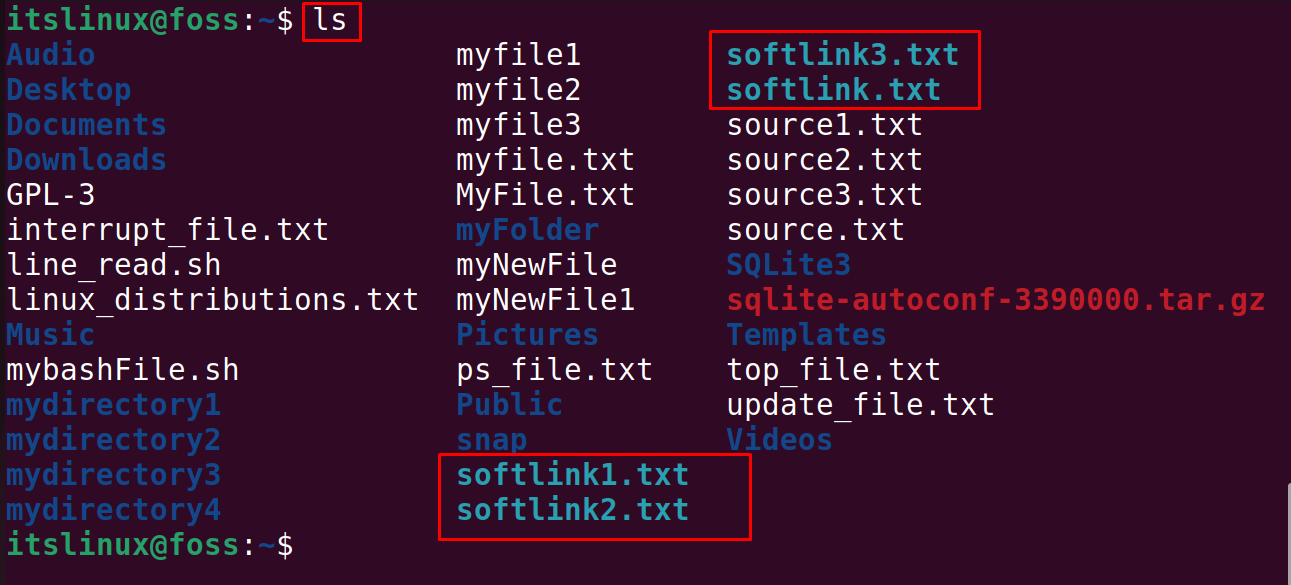
You can easily identify symbolic links using the ls -l command. This command lists file details, and symbolic links are indicated by an ‘l’ at the beginning of the permissions string. Additionally, the output will show the link name followed by an arrow (->) pointing to its target. For example, mylink -> /path/to/target clearly shows its nature.
Checking Permissions for Deletion
To remove a symbolic link, you must have write permissions in the directory where the link resides. You do not need permissions on the target file itself. If you encounter permission errors, try using sudo before your deletion command, or ensure you are the owner of the directory containing the link.
Method 1: How to Remove (Delete) Symbolic Links in Linux Using the `rm` Command
The rm command, short for “remove,” is the most common and straightforward way to delete symbolic links. It’s a versatile command used for deleting files and directories, and it handles symlinks just as easily. This method is widely adopted for its simplicity and effectiveness across Linux distributions.
Basic-rm-command-syntax-for-symlinks">Basic `rm` Command Syntax for Symlinks
To remove a symbolic link, you simply use the rm command followed by the link’s name. The syntax is rm . Remember, you are deleting the link itself, not the file or directory it points to. This command works whether the target is a file or a directory.
Examples: Deleting a Single Symbolic Link
Let’s consider a practical example. If you have a symbolic link named my_document_link pointing to /home/user/documents/report.txt, you would delete it like this:
rm my_document_linkSimilarly, for a link named project_folder_link pointing to /var/www/html/myproject, the command remains the same:
rm project_folder_linkThe system will remove the link without any further prompts unless specified.
Important Considerations When Using `rm`
Always double-check the name of the symbolic link you are deleting. Using rm with the -f (force) option can bypass confirmation prompts, which might be risky if you’re unsure. Furthermore, ensure you are deleting the link and not accidentally providing the target path. The rm command is powerful; therefore, use it with care.
Method 2: Deleting Symbolic Links Using the `unlink` Command
While rm is commonly used, the unlink command offers a more specific and arguably safer way to remove symbolic links. It is designed solely for removing a single name from the file system, making it ideal for symlinks without the broader implications of rm.
Understanding the `unlink` Command’s Purpose
The unlink command’s primary function is to remove a directory entry. In the context of symbolic links, it effectively removes the link file itself. It cannot delete directories, which makes it a slightly safer option for Beginners who might confuse a symlink to a directory with an actual directory.
Syntax and Usage Examples for `unlink`
The syntax for unlink is straightforward: unlink . It accepts only one argument, which must be the path to the symbolic link. For instance, to remove my_document_link, you would type:
unlink my_document_linkThis command performs the same deletion as rm but is more explicit about its intent to remove a single file entry.
When to Prefer `unlink` Over `rm`
You might prefer unlink when you want to be absolutely certain you are only deleting a file entry and not accidentally recursively deleting a directory. It provides a clearer semantic intent for symbolic link removal. However, for most users, rm remains the go-to command due to its familiarity and versatility across various deletion tasks.
Distinguishing Between Deleting the Link and the Target File/Directory
A common point of confusion for new Linux users is the difference between deleting a symbolic link and deleting its target. Understanding this distinction is paramount to prevent accidental data loss. Symbolic links are merely pointers; their removal does not affect the data they point to.
How `rm` and `unlink` Affect Symbolic Links Only
Both the rm and unlink commands, when applied to a symbolic link, only remove the link itself. The original file or directory that the symlink points to remains completely untouched. This design ensures that you can manage your shortcuts independently of your actual data. Therefore, feel confident using these commands for symlink cleanup.
Accidentally Deleting the Target: What Not to Do
Never append a trailing slash to a symbolic link pointing to a directory when using rm, as this can sometimes cause rm to treat the link as the directory itself and attempt to delete its contents. For example, rm -r my_dir_link/ could be dangerous. Always specify the link name without a trailing slash to ensure you only delete the link. Furthermore, always confirm the item you are deleting is indeed the link.
Finding and Removing Multiple Symbolic Links in Linux
For more advanced scenarios, especially in larger file systems, you might need to locate and remove multiple symbolic links efficiently. The find command is an invaluable tool for this task, allowing you to specify criteria for your search. This approach is highly effective for system maintenance.
Using `find` to Locate Symlinks Across Directories
The find command can search for files based on their type. To find all symbolic links within a specific directory and its subdirectories, use the -type l option. For example, to find all symlinks in your current directory and below, you would run:
find . -type lThis command will list every symbolic link it discovers, providing a clear overview before any deletion actions are taken.
Combining `find` with `rm` or `unlink` for Batch Deletion
Once you’ve identified the symbolic links, you can combine find with rm or unlink for batch deletion. The -delete option with find is the safest way to do this. It ensures only symbolic links are processed. For example, to remove all symlinks in the current directory:
find . -type l -deleteAlternatively, you can use -exec for more control:
- First, identify the links:
find /path/to/search -type l - Then, execute deletion for each found link:
find /path/to/search -type l -exec rm {} ; - Always test with
-printfirst to verify the output before adding-deleteor-exec rm.
Troubleshooting Common Issues When Removing Symbolic Links
Even with simple commands, you might encounter issues when attempting to remove symbolic links. Understanding these common problems can help you quickly resolve them and continue your work. Timely troubleshooting prevents frustration.
Permission Denied Errors During Deletion
If you receive a “Permission denied” error, it means you lack the necessary write permissions for the directory containing the symbolic link. To fix this, try prefixing your command with sudo (e.g., sudo rm my_link). Alternatively, change the permissions of the directory or the link itself using chmod or chown if you have the appropriate elevated privileges. Understanding Linux file permissions is key here.
Link Not Found or Invalid Link Errors
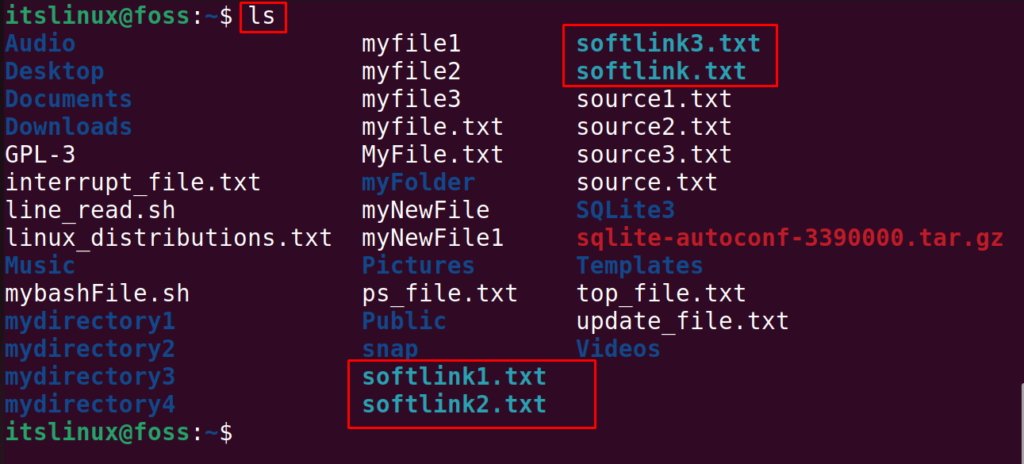
This error usually indicates that the symbolic link name you provided does not exist in the current directory or the specified path is incorrect. Double-check the spelling and ensure you are in the correct directory. Use ls -l to verify the link’s existence and its exact name before attempting deletion again. Incorrect paths are a frequent cause of this issue.
Dealing with Broken Symbolic Links
A broken symbolic link points to a target that no longer exists. While they don’t consume much space, they can clutter your system. You can find broken links using find . -xtype l. Once identified, you can safely remove them using rm or unlink as described earlier. Removing broken links improves system clarity.
Frequently Asked Questions
Can I delete a symbolic link without affecting its target?
Yes, absolutely. Both the rm and unlink commands are designed to remove only the symbolic link itself. The original file or directory that the symlink points to will remain completely intact and unaffected by the link’s deletion. This is a fundamental characteristic of symbolic links in Linux.
What is the difference between `rm` and `unlink` when removing symlinks?
Functionally, both rm and unlink will remove a symbolic link. However, unlink is specifically designed to remove a single file entry and cannot delete directories, making it slightly more explicit and potentially safer for beginners. In contrast, rm is a more general-purpose command for deleting files and directories, offering more options like recursive deletion.
How do I find and remove multiple or broken symbolic links?
You can use the find command to locate multiple symbolic links. To find all symlinks, use find /path/to/search -type l. To find broken symlinks, use find /path/to/search -xtype l. Once found, you can remove them in a batch using find /path/to/search -type l -delete or find /path/to/search -type l -exec rm {} ;.
Conclusion: Master Symbolic Link Deletion in Linux
Effectively managing symbolic links is a key aspect of mastering the Linux command line. You now understand how to remove (delete) symbolic links in Linux using both the rm and unlink commands. Remember to always verify the link name and ensure you have the correct permissions before proceeding. Furthermore, leverage the powerful find command for batch operations to keep your file system pristine.
Key Takeaways for Removing Symlinks Efficiently
- Use
rmorunlinkto delete a single symbolic link. - Deleting a symbolic link does not affect its target file or directory.
- Always check permissions and the exact link name before deletion.
- Utilize
find . -type l -deletefor safely removing multiple symbolic links. - Be cautious with trailing slashes when using
rmon directory symlinks.
Further Learning: Managing Files and Directories in Linux
Continue to explore other essential Linux commands for file and directory management. Learn about ln for creating links, mv for moving, and cp for copying. Understanding these tools will significantly enhance your productivity and control over your Linux environment. Practice these commands regularly to build confidence and expertise.
