
Understanding how to manage users and their permissions is fundamental for any Linux system administrator. This guide will show you precisely how to list groups in Linux, a critical skill for maintaining system security and organization. Knowing which users belong to which groups helps you control access to files and resources effectively. We will explore various commands and techniques to achieve this, ensuring you have a clear picture of your system’s group structure.
Introduction to Linux Groups and Their Importance
Linux groups are collections of users. They simplify permission management across multiple users. Instead of assigning permissions to individual users, you can assign them to a group. All members of that group then inherit those permissions. This structure is essential for efficient system administration.
What are Linux Groups and Why Do They Matter?
Linux groups define access rights for system resources. They allow multiple users to share access to files and directories without compromising security. For instance, a development team might share a project directory. Placing them in a common group grants them all necessary permissions. This approach reduces administrative overhead significantly.
Why is Listing Groups in Linux Essential for System Administration?
System administrators must frequently verify user permissions. Listing groups helps identify who has access to what. It is vital for security audits and compliance checks. Furthermore, understanding group memberships aids in troubleshooting access issues. Therefore, knowing how to list groups in Linux is a core administrative task.
Overview of Methods to Check User Groups Linux
Several commands allow you to check user groups in Linux. Each command offers a slightly different perspective or level of detail. We will cover the most common and effective methods. These include viewing system-wide groups and checking groups for specific users. Mastering these commands will empower your administrative capabilities.
Understanding Linux Group Concepts and the /etc/group File
Before diving into commands, it is helpful to grasp core group concepts. Linux distinguishes between primary and supplementary groups. Every user account has a primary group. Additionally, users can belong to multiple supplementary groups. These concepts are crucial for understanding group management.
Primary vs. Supplementary Groups Explained
When a user is created, they are assigned a primary group. This group typically shares the same name as the user. Any files created by the user will usually have this primary group as their group owner. Supplementary groups, however, provide additional permissions. A user can be a member of many supplementary groups, extending their access rights.
The Role of Group IDs (GIDs) in Linux
Each group in Linux has a unique Group ID (GID). This numerical identifier helps the system manage groups internally. GIDs are similar to User IDs (UIDs) for users. They are crucial for system processes and permissions. Understanding GIDs is key to advanced group management tasks. You will often see GIDs when listing group information.
Dissecting the `/etc/group` File Structure
The `/etc/group` file is a plain text file. It stores information about all local groups on a Linux system. Each line in this file represents a single group. The format typically includes the group name, an encrypted password (often empty or ‘x’), the GID, and a comma-separated list of group members. For example, a line might look like `groupname:x:1001:user1,user2`. This file is fundamental for understanding your system’s group configuration. You can learn more about its structure on resources like Wikipedia’s Group identifier page.
How to List All Groups in Linux System-Wide
Listing all groups on your system provides a comprehensive overview. This is often the first step in auditing group configurations. Several commands can help you achieve this. Each command presents the information in a slightly different format, catering to various needs.
Using the `cat /etc/group` Command for Raw Output
The `cat /etc/group` command displays the raw content of the group file. This is the most direct way to view all groups. It shows each group on a new line, including its GID and members. While useful, the output can be extensive on busy systems. Therefore, it is often piped to other commands for filtering.

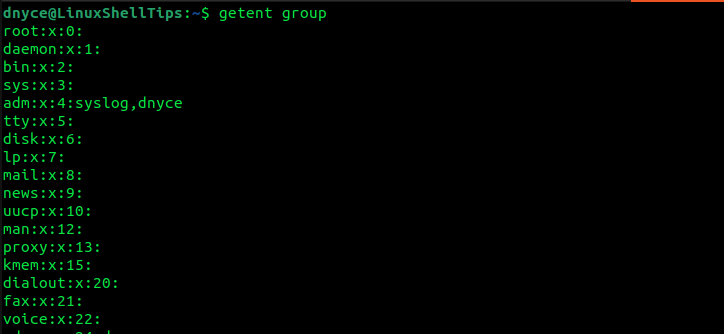
Leveraging `getent group` for a Formatted List of All Groups
The `getent group` command offers a more structured way to retrieve group information. It queries system databases, including `/etc/group` and potentially network-based sources like LDAP. This command provides a consistent output format. It is generally preferred over `cat /etc/group` for reliability. This is an excellent way to list groups in Linux comprehensively.
Here’s how to use it:
- Open your terminal.
- Type `getent group` and press Enter.
- Review the output, which lists all groups and their members.
Interpreting the Output from System-Wide Group Listings
When you list all groups, you will see several columns of data. The first column is the group name. The third column is the GID. The last column lists the users who are members of that group. Understanding these fields is crucial. It helps you quickly identify specific groups and their associated users. This interpretation skill is vital for system management.
Listing Groups for a Specific User in Linux
Often, you need to check the group memberships for a particular user. This is common when troubleshooting permissions or setting up new user accounts. Linux provides dedicated commands for this specific task. These commands offer quick and clear results.
The `groups` Command: Quick Check of User Group Membership
The `groups` command is the simplest way to see which groups a user belongs to. If you run `groups` without any arguments, it shows the groups for the currently logged-in user. To check another user, simply type `groups
Utilizing the `id` Command for Detailed User and Group Information
The `id` command provides more detailed information than `groups`. It shows the user’s UID, primary GID, and all supplementary GIDs and their corresponding group names. Running `id
Querying `getent group ` to Find Groups a User Belongs To
While `getent group` lists all groups, you can combine it with other tools to find groups for a specific user. For example, `getent group | grep
Advanced Techniques to View Groups Linux and Filter Information
Sometimes, a simple list isn’t enough. You might need to find specific groups or extract particular data. Advanced command-line tools can help refine your group listings. These techniques are particularly useful on large or complex systems. They allow for precise data manipulation.
Filtering Group Lists with `grep` for Specific Patterns
The `grep` command is incredibly powerful for filtering text. You can pipe the output of `cat /etc/group` or `getent group` to `grep`. For example, `getent group | grep ‘admin’` would show all groups containing “admin” in their name or member list. This helps narrow down extensive outputs. It makes finding relevant groups much faster.
Extracting Custom Group Data Using `awk` and `sed`
For more complex data extraction, `awk` and `sed` are invaluable. You can use `awk` to print specific fields from the `/etc/group` file. For instance, `awk -F: ‘{print $1}’ /etc/group` would list only the group names. `sed` can be used for text substitution or deletion within the group file output. These tools offer granular control over your data. They are excellent for scripting and automation.
Sorting and Uniquely Listing Group Names
To get a clean, sorted list of group names, you can combine several commands. `getent group | awk -F: ‘{print $1}’ | sort -u` will extract all group names, sort them alphabetically, and remove duplicates. This provides a clear, concise list. It is very useful for inventorying all unique groups on a system. This helps in managing group resources effectively.
- `awk -F: ‘{print $1}’`: Extracts the first field (group name).
- `sort -u`: Sorts the output and shows only unique lines.
- `getent group`: Provides the initial list of groups.
Practical Applications of Linux Group Information
Knowing how to list groups in Linux is not just theoretical. It has direct practical applications in system administration. This knowledge helps maintain security, ensure compliance, and streamline daily tasks. Effective group management is a cornerstone of a well-run Linux environment.
Auditing User Permissions and access control
Regularly auditing group memberships is crucial for security. It helps identify users with excessive permissions. You can quickly see who has access to sensitive directories or files. This proactive approach prevents unauthorized access. It ensures that only necessary users belong to critical groups. Auditing is a continuous process.
Enhancing System Security and Compliance
Proper group management directly contributes to system security. By organizing users into appropriate groups, you enforce the principle of least privilege. This means users only have access to what they need. Furthermore, many compliance standards require strict access control. Listing groups helps demonstrate adherence to these regulations. It provides clear evidence of your security posture.
Streamlining User and Resource Management Tasks
Groups simplify the management of users and resources. When a new project starts, you create a group and assign permissions to it. Then, simply add team members to that group. This is far more efficient than assigning permissions individually. Similarly, when a user leaves, removing them from groups revokes their access quickly. This streamlines administrative workflows significantly.
Troubleshooting Common Issues When Listing Groups in Linux
Even with straightforward commands, you might encounter issues. Understanding common problems can help you quickly resolve them. This section addresses some typical scenarios. It provides solutions for unexpected outputs or errors. Being prepared for these issues saves time and effort.
Addressing Permission Denied Errors and Solutions
If you try to view `/etc/group` directly and get a “Permission denied” error, you might not have sufficient privileges. This usually means you are not running as root or using `sudo`. To fix this, prepend `sudo` to your command. For example, `sudo cat /etc/group`. Always use `sudo` carefully. It grants elevated permissions.
Understanding Empty Outputs and What They Mean
Sometimes, a command might return an empty output. If `groups
Verifying the Integrity of Group Configuration Files
If group commands behave unexpectedly, the `/etc/group` file might be corrupted. Check for syntax errors or missing lines. You can use `pwck` and `grpck` utilities to verify the integrity of password and group files. These tools can identify and sometimes fix inconsistencies. Regular backups of these critical files are also highly recommended. This ensures system stability.
Frequently Asked Questions
How do I create a new group in Linux?
You can create a new group using the `sudo groupadd
What’s the difference between `groups` and `id` commands?
The `groups` command lists only the group names a user belongs to. The `id` command provides more comprehensive information. It includes the user’s UID, primary GID, and all associated group names and GIDs. `id` offers a more detailed numerical and textual breakdown.
Can I list groups a user doesn’t belong to?
There isn’t a direct command to list groups a user doesn’t belong to. However, you can achieve this by listing all system groups and then filtering out the groups the user does belong to. This often involves scripting with `awk` or `grep -v` in combination with `getent group`.
How do I add or remove a user from a group?
To add a user to a supplementary group, use `sudo usermod -aG
Why might a user appear in `/etc/passwd` but not in `/etc/group`?
Every user must have a primary group, which is typically created automatically and listed in `/etc/group`. If a user appears in `/etc/passwd` but seems absent from `/etc/group`, it could indicate a system misconfiguration or a corrupted file. The `grpck` utility can help diagnose such issues. However, the user’s primary group is usually implied, even if not explicitly listed as a member in the group’s entry if it’s the default group.
Conclusion: Mastering How to List Groups in Linux
Mastering how to list groups in Linux is an indispensable skill for any system administrator. You now understand the various commands available, from simple `groups` and `id` to the more versatile `getent group`. Furthermore, you can leverage advanced tools like `grep`, `awk`, and `sed` for refined data extraction. This knowledge empowers you to maintain robust security and efficient resource management.
Recap of Key Commands for Listing Groups
We covered several essential commands for group listing. These include `cat /etc/group` for raw file content and `getent group` for formatted system-wide lists. For specific users, `groups
The Ongoing Importance of Effective Group Management
Effective group management is not a one-time task; it is an ongoing process. Regular audits and updates ensure your system remains secure and organized. As users and projects evolve, so too should your group configurations. Staying vigilant helps prevent security vulnerabilities and access conflicts. This proactive approach ensures system stability and compliance.
Continue Your Linux Journey: Explore More Group Management Commands!
This guide provides a strong foundation. However, the world of Linux group management is vast. Consider exploring commands like `groupadd`, `groupmod`, `groupdel`, `usermod`, and `gpasswd` to further enhance your skills. Practice these commands in a safe environment to build confidence. Your journey to becoming a Linux expert is continuous. Keep learning and experimenting!
