
Automating repetitive tasks is crucial for efficiency in any computing environment. If you need to schedule scripts or commands to run at precise, regular intervals, understanding How To Run Cron Jobs Every 5, 10, Or 15 Minutes is essential. This guide will walk you through the process, ensuring your automated tasks execute reliably. You will learn the core concepts of cron, its syntax, and practical examples for frequent scheduling.
Introduction to Cron Jobs and Scheduled Tasks
Cron jobs are a powerful feature in Unix-like operating systems, including Linux. They allow users to schedule commands or scripts to run automatically at specified times or dates. System administrators and developers widely use cron to automate routine maintenance, data backups, and custom application tasks. Therefore, mastering cron is a valuable skill for anyone managing servers or applications.
The ability to schedule tasks precisely saves significant manual effort. For instance, you can automate daily reports, clean up temporary files, or synchronize data between systems. Cron ensures these critical operations occur without human intervention. Consequently, it enhances system reliability and operational efficiency significantly.
What is Cron and Why Use It?
Cron is a time-based job scheduler daemon that runs in the background. It reads configuration files called ‘crontabs’ to determine which commands to execute and when. Using cron offers numerous benefits, primarily automation. It frees up valuable time for more complex tasks.
Furthermore, cron provides a consistent and reliable method for task execution. You can set it once and trust it to run your scripts exactly as defined. This reliability is vital for critical system operations. Therefore, many professionals rely on cron for their automated workflows.
Decoding the Crontab File Structure
A crontab file contains a list of commands, each associated with a specific schedule. Each user on a system can have their own crontab file, which is separate from the system-wide crontab. These files dictate when and how commands should be executed. Understanding this structure is key to effective scheduling.
When you edit your crontab, you are modifying this personal schedule file. The cron daemon then reads these files periodically. It executes commands as their scheduled times arrive. This clear separation helps manage tasks for different users and system processes.
Mastering Cron Job Syntax: The Five Fields
The syntax for a cron job entry consists of five time fields, followed by the command to be executed. These fields specify the minute, hour, day of the month, month, and day of the week. Each field accepts specific values or wildcards. Understanding these fields is fundamental to scheduling.
- Minute (0-59): Specifies the minute of the hour.
- Hour (0-23): Specifies the hour of the day.
- Day of Month (1-31): Specifies the day of the month.
- Month (1-12): Specifies the month of the year.
- Day of Week (0-7): Specifies the day of the week (0 or 7 is Sunday).
For example, `0 2 /path/to/script.sh` would run a script every day at 2:00 AM. Wildcards (``) mean “every” unit. The slash (`/`) operator is used for step values, which is crucial for frequent execution. For more detailed information on crontab syntax, you can consult the official cron documentation.
Understanding How to Run Cron Jobs Every 5, 10, or 15 Minutes
Scheduling tasks at frequent intervals like every 5, 10, or 15 minutes requires a specific understanding of cron’s step value syntax. This allows for precise control over execution frequency. You can easily configure cron to meet your exact scheduling needs. Therefore, mastering this aspect is vital for many automated processes.
The step value syntax uses a forward slash (`/`) followed by a number. For example, `*/5` in the minute field means “every 5 minutes.” This simple yet powerful notation enables highly granular scheduling. It ensures your tasks run exactly when needed, without complex workarounds.
Accessing and Editing Your Crontab File
To add or modify cron jobs, you must access your user’s crontab file. You can do this using the `crontab` command-line utility. This command opens your crontab in a text editor, typically `vi` or `nano`. Consequently, it makes editing straightforward.
- Open your crontab file by typing `crontab -e` in your terminal.
- Add your cron job entry on a new line.
- Save and exit the editor (e.g., `Ctrl+X`, `Y`, `Enter` for nano; `:wq` for vi).
Upon saving, cron will automatically detect the changes and reload your schedule. You will usually see a message confirming the installation of your new crontab. This immediate feedback helps confirm your changes are active.
Ensuring Proper Environment and Paths for Cron
Cron jobs execute in a minimal environment, which might not include all your usual shell paths. Therefore, it is critical to use absolute paths for commands and scripts within your crontab entries. This prevents “command not found” errors. Always specify the full path to your executable.
Additionally, you might need to set environment variables directly in your crontab file. For example, `PATH=/usr/local/bin:/usr/bin:/bin` can be added at the top of your crontab. This ensures your scripts find necessary binaries. Always test your scripts manually with the cron environment in mind.
Verifying and Monitoring Your Cron Jobs
After adding a cron job, it’s essential to verify that it’s correctly scheduled. You can list your active cron jobs using the `crontab -l` command. This displays all entries in your current user’s crontab. Therefore, it provides immediate confirmation of your setup.
Monitoring is also crucial for long-term reliability. Check system logs, such as `/var/log/syslog` or `/var/log/cron`, for execution details and potential errors. These logs often provide valuable insights into why a job might have failed. Regular checks help maintain smooth operation of your scheduled tasks.
Practical Examples: Run Cron Jobs Every 5, 10, and 15 Minutes
Now, let’s explore concrete examples of how to run cron jobs every 5, 10, or 15 minutes. These examples demonstrate the specific syntax required for each interval. You can adapt these patterns for any command or script you wish to automate. Therefore, these are highly actionable examples.
The key lies in using the step operator (`/`) in the minute field. This allows for precise, recurring execution within an hour. Understanding this pattern unlocks a wide range of scheduling possibilities. Always replace `/path/to/your_script.sh` with the actual absolute path to your script or command.
Scheduling a Task Every 5 Minutes with Cron
To run a command or script every 5 minutes, you will use `*/5` in the minute field. This tells cron to execute the task when the minute is 0, 5, 10, 15, and so on. This is one of the most common frequent schedules. Here’s how to run cron jobs every 5 minutes:
/5 * /usr/bin/php /var/www/html/myscript.php >/dev/null 2>&1This entry executes a PHP script every five minutes, redirecting all output to `/dev/null`. The `>/dev/null 2>&1` part prevents cron from emailing you the output of every successful run. This is a best practice for silent execution.
How to Run a Cron Job Every 10 Minutes
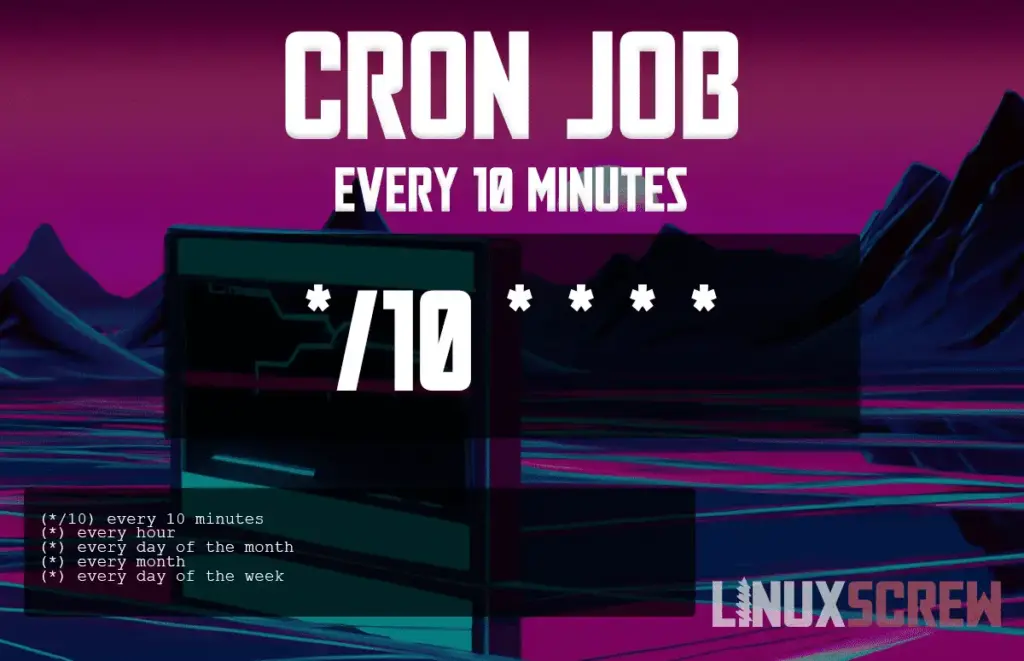
Similarly, for a task to execute every 10 minutes, you will use `*/10` in the minute field. This ensures the command runs at minutes 0, 10, 20, 30, 40, and 50 past the hour. This interval is useful for slightly less frequent updates. Here is an example of how to run a cron job every 10 minutes:
/10 * /usr/bin/python3 /home/user/data_sync.pyThis cron job will execute a Python script every ten minutes. Remember to replace `/usr/bin/python3` and `/home/user/data_sync.py` with the absolute paths relevant to your system. Always test your script independently before adding it to crontab.
Executing Scripts Every 15 Minutes Using Crontab
If you need a task to run every quarter of an hour, `*/15` in the minute field is your solution. This will trigger execution at minutes 0, 15, 30, and 45 past the hour. This interval is often used for periodic checks or data processing. Here’s how to run cron jobs every 15 minutes:
/15 * /bin/bash /opt/scripts/backup_check.shThis command executes a shell script located at `/opt/scripts/backup_check.sh` every fifteen minutes. Ensure the script has execute permissions (`chmod +x backup_check.sh`). This is crucial for cron to run it successfully. Furthermore, confirm that `/bin/bash` is the correct interpreter path.
Best Practices for Reliable Cron Job Management
Managing cron jobs effectively involves more than just setting the schedule. Adhering to best practices ensures reliability, maintainability, and proper resource usage. These practices help prevent common issues and make troubleshooting easier. Therefore, always consider these guidelines when setting up your automated tasks.
Proper logging, error handling, and resource management are paramount. A well-managed cron environment contributes significantly to system stability. It also reduces the likelihood of unexpected behavior. Implementing these tips will save you time and effort in the long run.
Redirecting Output and Logging Cron Job Activity
By default, cron emails the output of a job to the user who owns the crontab. While useful for errors, this can flood your inbox for frequently running jobs. Redirecting output is a common solution. You can send standard output and error to `/dev/null` for silent execution.
/5 * /path/to/script.sh >/dev/null 2>&1For debugging or auditing, redirect output to a log file instead: `/5 * /path/to/script.sh >> /var/log/my_cron_job.log 2>&1`. This appends output to the specified log file. Consequently, you can review execution details later without receiving constant emails.
Handling Permissions and Script Execution
Cron jobs run under the permissions of the user who owns the crontab. Ensure your scripts have the necessary execute permissions (`chmod +x script.sh`). Furthermore, make sure the user has access to all files and directories the script interacts with. Incorrect permissions are a frequent cause of cron job failures.
Always specify the interpreter for your script at the top using a shebang line (e.g., `#!/bin/bash` or `#!/usr/bin/python3`). This guarantees the script runs with the correct interpreter. It also avoids potential issues if the default shell for cron is different from your interactive shell.
Preventing Overlapping Cron Jobs
For frequently running jobs, there’s a risk of a new instance starting before the previous one finishes. This can lead to resource contention or data corruption. Implementing a locking mechanism is a robust solution. You can use a simple lock file or tools like `flock`.
/5 * /usr/bin/flock -xn /tmp/my_script.lock -c "/path/to/my_script.sh"The `flock -xn` command ensures that if an instance of `my_script.sh` is already running, the new instance will exit immediately. This prevents concurrent executions. Therefore, it maintains the integrity of your automated processes.
Troubleshooting Common Cron Job Issues
Even with best practices, cron jobs can sometimes fail or behave unexpectedly. Knowing how to troubleshoot these issues is crucial for maintaining system reliability. Many common problems stem from environmental differences between your shell and cron’s execution context. Therefore, understanding these nuances is key.
Effective debugging involves checking logs, verifying paths, and understanding cron’s execution environment. A systematic approach helps quickly identify and resolve problems. This section will guide you through common troubleshooting steps. Consequently, you can quickly get your cron jobs back on track.
Debugging Failed Cron Jobs
When a cron job fails, the first place to look is the system logs. On most Linux systems, cron activity is logged in `/var/log/syslog` or `/var/log/cron`. Search for entries related to your job. These logs often contain error messages or indications of why a job did not run. This provides valuable clues.
Another common issue is incorrect paths or missing environment variables. Test your script by running it manually from the command line using the same user that owns the crontab. Ensure all commands within your script use absolute paths. This helps replicate cron’s minimal environment. Additionally, check for syntax errors in your crontab entry itself.
Time Zone Considerations for Cron
Cron jobs typically run based on the system’s local time zone. This can cause confusion if your server is in a different time zone than you expect. Always confirm the server’s time zone settings. You can use the `date` command to check the current system time and zone. This ensures your schedules align correctly.
If you need a cron job to run according to a specific time zone, you can set the `TZ` environment variable within your crontab. For example, `TZ=America/New_York` at the top of your crontab will make subsequent jobs run according to Eastern Time. This provides explicit control over time zone behavior. Therefore, it prevents unexpected execution times.
Using Mail Output for Error Notifications
While redirecting output to `/dev/null` is good for silent success, you still want to know about failures. Cron can be configured to email output only when a job produces an error or non-zero exit status. Use the `MAILTO` variable at the top of your crontab file to specify an email address. This ensures you receive notifications.
MAILTO="[email protected]"
/5    * /path/to/script.sh >/tmp/cron_output.log 2>&1
In this setup, cron will email the contents of `/tmp/cron_output.log` if the script exits with an error. This is an effective way to stay informed about issues without being overwhelmed by successful execution logs. Consequently, it provides a balance between silence and notification.
Frequently Asked Questions About Cron Jobs
Can I run a cron job more frequently than every minute?
No, cron’s smallest unit of time for scheduling is one minute. It cannot natively schedule tasks to run every few seconds. If you require sub-minute execution, consider alternatives like `systemd timers` with `OnCalendar` or `OnUnitActiveSec`, or use a loop within a shell script that runs as a continuous background process. These methods offer greater granularity for very frequent tasks.
How do I disable or delete a cron job?
To disable a cron job temporarily, you can comment out the line in your crontab file by adding a hash symbol (`#`) at the beginning. Use `crontab -e` to open your crontab for editing. To permanently delete a job, simply remove the entire line from your crontab file and save it. If you wish to delete all cron jobs for your user, you can use `crontab -r`, but be cautious as this action cannot be easily undone.
What’s the difference between user crontab and system crontab?
User crontabs are individual files managed by each user via `crontab -e`. They are stored in a specific directory (e.g., `/var/spool/cron/tabs/`). System crontabs, on the other hand, are typically located in `/etc/crontab` and files within `/etc/cron.d/`. System crontabs allow for an additional field: the user under which the command should run. They are generally used for system-wide tasks and managed by the root user or system administrators.
Conclusion: Mastering Your Scheduled Tasks
Mastering how to run cron jobs every 5, 10, or 15 minutes empowers you to automate a wide range of tasks efficiently. By understanding the crontab syntax, particularly the step value operator, you can precisely control your task schedules. Remember to follow best practices for paths, permissions, and output redirection. These steps ensure your automated processes are robust and reliable.
Implementing effective cron job management saves time, reduces errors, and enhances system stability. Continue to explore cron’s capabilities and integrate it into your automation workflows. Share your experiences or ask further questions in the comments below. Your feedback helps others on their automation journey. Start optimizing your scheduled tasks today!
