
The Curl command in Linux with examples is an indispensable tool for developers, system administrators, and anyone working with network requests. It allows you to transfer data to or from a server using various protocols, making it incredibly versatile. Before diving in, let’s clarify what the Curl command in Linux with examples actually means: it’s a command-line utility for data transfer, supporting a wide range of protocols including HTTP, HTTPS, FTP, FTPS, SCP, SFTP, and more. This guide will explore its functionalities and provide practical examples to help you master this powerful utility.
Understanding the Curl Command in Linux with Examples
Curl, often pronounced “kurl,” stands for “Client for URLs.” It is a command-line tool designed to send and receive data over networks, supporting almost every protocol imaginable. This utility is pre-installed on most Linux distributions, making it readily available for various tasks. Understanding the Curl command in Linux with examples is crucial for web development, API testing, and automating data transfers.
What is Curl and Why Use It in Linux?
Curl is a powerful open-source command-line tool and library (libcurl) for transferring data with URLs. It was created by Daniel Stenberg and has become a standard utility in the Linux ecosystem. Users leverage Curl for numerous reasons, including downloading files, testing API endpoints, and interacting with web services programmatically. Its flexibility and robust feature set make it a go-to choice for many network-related operations.
There are several compelling reasons to incorporate Curl into your daily Linux workflow. For example, it provides detailed control over network requests, allowing for custom headers, authentication, and precise data handling. Additionally, Curl supports secure protocols, ensuring your data transfers are protected. This makes the Curl command in Linux with examples an essential skill for any technical professional.
Basic-curl-syntax-understanding-the-command-structure">Basic Curl Syntax: Understanding the Command Structure
The fundamental syntax for the Curl command is straightforward. You typically start with the `curl` command, followed by various options and then the URL you wish to interact with. These options modify Curl’s behavior, allowing you to specify request methods, headers, output files, and more. Mastering this basic structure is the first step towards effectively using the Curl command in Linux with examples.
A simple Curl command might look like `curl [options] [URL]`. Here, `[options]` are flags that control the command’s behavior, and `[URL]` is the target resource. For instance, you might use `-O` to save a file or `-I` to fetch only headers. Understanding these components is key to unlocking Curl’s full potential.
Installing Curl on Various Linux Distributions
While Curl is often pre-installed, you might need to install or update it on some systems. The installation process is generally simple and varies slightly depending on your Linux distribution. For most users, a package manager command will suffice to get Curl up and running.
Here’s how to install Curl on common Linux distributions:
- Debian/Ubuntu: Use `sudo apt update && sudo apt install curl`. This command first updates your package lists, then installs the Curl package.
- CentOS/RHEL/Fedora: Use `sudo yum install curl` or `sudo dnf install curl`. These package managers quickly fetch and install the utility.
- Arch Linux: Use `sudo pacman -S curl`. Arch’s package manager, Pacman, handles the installation efficiently.
Once installed, you can verify the installation by typing `curl –version` in your terminal. This will display the Curl version and supported protocols, confirming your setup is ready for using the Curl command in Linux with examples.
Practical Curl Command Examples for Web Requests
The true power of Curl lies in its practical applications for web requests. From fetching web pages to interacting with APIs, Curl handles a wide array of tasks. These Curl command examples demonstrate common scenarios you’ll encounter when working with web resources. They highlight how versatile this tool truly is for network operations.
Making a Simple GET Request with Curl
The most basic use of Curl is to make a GET request to retrieve content from a URL. When you execute a simple Curl command without additional options, it defaults to a GET request. This is useful for viewing the raw HTML content of a webpage or fetching data from a public API endpoint.
To perform a simple GET request, you just need the `curl` command followed by the URL. For example:
curl https://example.comThis command will output the HTML content of example.com directly to your terminal. It’s a fundamental Curl command in Linux with examples that every user should know.
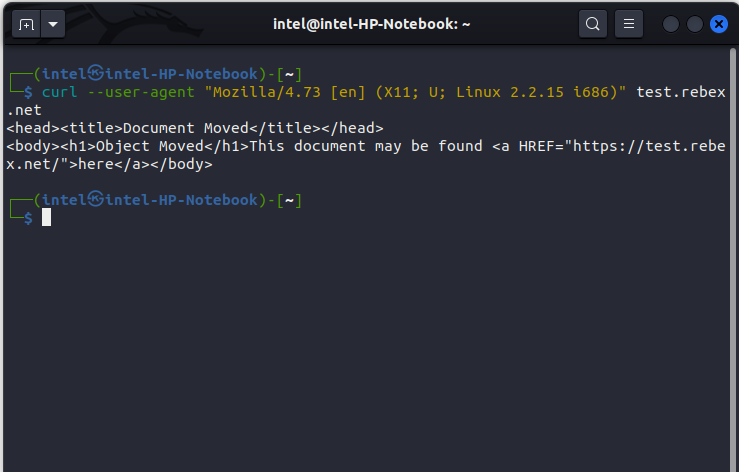
Viewing HTTP Response Headers Using Curl
Sometimes, you only need to inspect the HTTP headers returned by a server, not the entire page content. Curl provides a specific option for this purpose, which can be invaluable for debugging or understanding server responses. These headers contain important metadata about the request and response.
Use the `-I` or `–head` option to fetch only the HTTP headers. For instance:
curl -I https://example.comThis command will display information such as the HTTP status code, content type, server details, and caching instructions. Understanding these headers is a critical aspect of using the Curl command in Linux with examples for web diagnostics.
Following Redirects Automatically with Curl
Web servers often use HTTP redirects to guide clients to new URLs, especially when a page has moved. By default, Curl does not automatically follow these redirects. However, it offers an option to handle them seamlessly, ensuring you always reach the final destination. This feature is essential for robust web scraping and API interactions.
To instruct Curl to follow redirects, use the `-L` or `–location` option. Consider this example:
curl -L https://old-example.com/moved-pageCurl will then follow any `3xx` HTTP redirect responses until it reaches the final URL. This capability makes the Curl command in Linux with examples much more practical for navigating dynamic web content.
Advanced Curl Usage: Handling Data, Headers, and Authentication
Beyond simple GET requests, the Curl command in Linux with examples offers advanced features for complex interactions. These include sending custom headers, performing POST requests with data, and handling authentication. These functionalities are crucial for interacting with modern web applications and RESTful APIs.
Sending Custom HTTP Headers with the Curl Command
Custom HTTP headers allow you to send additional information to the server with your request. This could be anything from user-agent strings to API keys or content-type declarations. Curl provides a simple way to add these headers, giving you fine-grained control over your requests.
Use the `-H` or `–header` option to specify custom headers. You can include multiple `-H` options for several headers:
curl -H "User-Agent: MyCustomBrowser/1.0" -H "Accept: application/json" https://api.example.com/dataThis command sends two custom headers along with the GET request. It’s a powerful aspect of the Curl command in Linux with examples for API integration.
Performing POST Requests and Sending Data
POST requests are used to send data to a server, typically for creating new resources or submitting form data. Curl makes it easy to construct POST requests and include various types of data in the request body. This is fundamental for interacting with web forms and many API endpoints.
To send data with a POST request, use the `-X POST` option along with `-d` or `–data` for the request body. For example, to send JSON data:
curl -X POST -H "Content-Type: application/json" -d '{"name":"John Doe","age":30}' https://api.example.com/usersThis Curl command in Linux with examples sends a JSON payload to the specified URL. You can also send form-encoded data using `-d “param1=value1¶m2=value2″`. For more complex data or file uploads, the `-F` option is useful.
Implementing Basic Authentication with Curl
Many web services and APIs require authentication before granting access to resources. Basic authentication is a common method where a username and password are sent with each request. Curl simplifies the process of including these credentials securely.
Use the `-u` or `–user` option followed by `username:password` to provide authentication details:
curl -u "myuser:mypassword" https://secure.example.com/api/resourceCurl will automatically encode these credentials and include them in the `Authorization` header. This makes the Curl command in Linux with examples a robust tool for accessing protected resources.
Downloading Files Efficiently with Curl in Linux
One of the most common applications of Curl is downloading files from the internet. It offers various options for efficient and reliable file transfers, from simple downloads to resuming interrupted ones. These features make the Curl command in Linux with examples a go-to choice for fetching remote content.
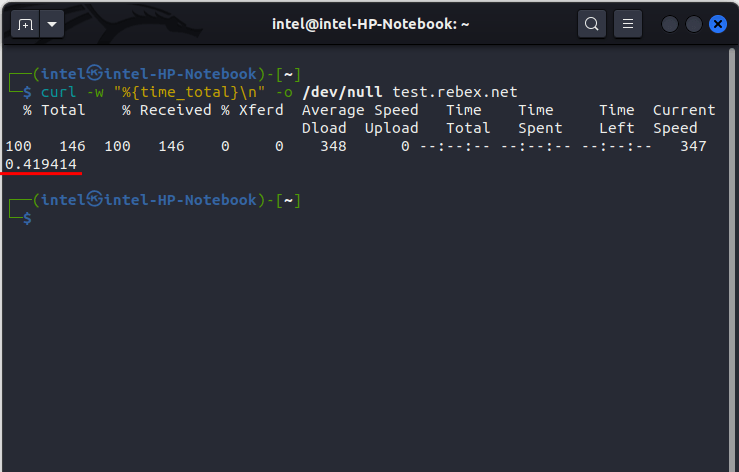
Saving Output to a File: Basic Download Examples
When you download a file, you typically want to save it to your local filesystem rather than displaying it in the terminal. Curl provides straightforward options for this, allowing you to specify the output filename. This is essential for any practical file download operation.
To save the output to a file, use the `-o` (lowercase O) or `–output` option to specify a custom filename, or `-O` (uppercase O) or `–remote-name` to save it with the remote filename. For example:
- Save with a custom name: `curl -o my_document.pdf https://example.com/document.pdf`
- Save with the remote name: `curl -O https://example.com/another_document.zip`
These are fundamental Curl command in Linux with examples for file management.
Resuming Interrupted Downloads with Curl
Network connections can be unreliable, leading to interrupted downloads. Fortunately, Curl has a powerful feature to resume downloads from where they left off, saving time and bandwidth. This is particularly useful for large files or unstable internet connections.
To resume an interrupted download, use the `-C -` or `–continue-at -` option. Curl will then attempt to pick up the download from the last byte received:
curl -C - -O https://example.com/large_file.isoThis command checks the local file size and tells the server to start sending data from that point. This makes the Curl command in Linux with examples incredibly resilient for file transfers.
Downloading Multiple Files Concurrently
While Curl itself is designed for single transfers, you can leverage shell scripting or background processes to download multiple files concurrently. This can significantly speed up tasks involving many files. Understanding this approach enhances your efficiency when using the Curl command in Linux with examples.
You can use a simple loop in a shell script to download multiple files. Alternatively, for true concurrency, you might run multiple `curl` commands in the background using `&`. For instance:
curl -O https://example.com/file1.zip &
curl -O https://example.com/file2.tar.gz &
wait
This executes two downloads simultaneously, then waits for them to complete. This method demonstrates advanced usage of the Curl command in Linux with examples for batch operations.
Troubleshooting Common Issues with the Curl Command
Even with its robustness, you might encounter issues when using the Curl command. Understanding common error messages and debugging techniques is essential for efficient problem-solving. This section helps you navigate typical challenges with the Curl command in Linux with examples.
Understanding Curl Error Codes and Messages
Curl provides descriptive error messages and exit codes when a command fails. These codes can indicate various problems, such as network issues, invalid URLs, or authentication failures. Learning to interpret these messages is the first step toward resolving problems.
Common error messages include “Could not resolve host,” “Connection refused,” or “SSL certificate problem.” You can check Curl’s exit code using `echo $?` immediately after a command. A non-zero code indicates an error. For a comprehensive list of error codes, refer to the official libcurl documentation.
Debugging Connection Problems and Timeouts
Connection issues and timeouts are frequent when dealing with remote servers. These can stem from network firewalls, incorrect server addresses, or slow server responses. Curl offers options to help diagnose and manage these situations effectively.
Use the `-v` or `–verbose` option to get detailed information about the connection process, including headers and SSL handshake details. For timeouts, the `–connect-timeout` and `–max-time` options can be used to set limits. For example, `curl –connect-timeout 10 –max-time 30 https://slow.example.com` will attempt to connect for 10 seconds and will stop the entire transfer after 30 seconds. These are vital debugging tools for the Curl command in Linux with examples.
Tips for Secure and Efficient Curl Usage
Using Curl securely and efficiently involves several best practices. Always validate your URLs, be cautious with sensitive data, and leverage Curl’s features for optimal performance. These tips ensure your Curl operations are both safe and effective.
Consider these points for secure and efficient usage:
- Verify SSL Certificates: By default, Curl verifies SSL certificates. Avoid using `-k` or `–insecure` in production unless absolutely necessary, as it bypasses critical security checks.
- Limit Bandwidth: Use `–limit-rate` to prevent Curl from consuming all available bandwidth during large downloads.
- Use Configuration Files: For complex or repetitive commands, store options in a `.curlrc` file to simplify execution.
Following these guidelines will enhance your experience with the Curl command in Linux with examples, making your operations more reliable and secure.
Frequently Asked Questions
What is the difference between curl and wget?
Both Curl and Wget are command-line tools for downloading files, but they serve different primary purposes. Curl is designed for data transfer with a wide range of protocols and offers extensive control over requests, making it ideal for interacting with APIs and complex web services. Wget, on the other hand, is primarily focused on recursive downloads, mirroring websites, and handling HTTP/FTP downloads robustly, often used for simple file retrieval or entire website backups. The Curl command in Linux with examples offers more flexibility for custom requests.
How do I use curl to upload a file to a server?
To upload a file using Curl, you typically use the `-F` or `–form` option for HTTP POST requests, especially when dealing with multipart/form-data. For example: `curl -F “file=@/path/to/local/file.txt” https://upload.example.com/upload`. If you’re uploading via FTP or SFTP, you would use the `-T` or `–upload-file` option: `curl -T /path/to/local/file.txt ftp://ftp.example.com/remote/path/`. This demonstrates another powerful use of the Curl command in Linux with examples.
Can curl interact with REST APIs, and how?
Yes, Curl is an excellent tool for interacting with REST APIs. It supports all HTTP methods (GET, POST, PUT, DELETE, etc.) via the `-X` option, allows sending custom headers with `-H`, and can send request bodies with `-d` for JSON or form data. For example, `curl -X GET -H “Authorization: Bearer YOUR_TOKEN” https://api.example.com/users` would fetch user data from an authenticated API. This makes the Curl command in Linux with examples indispensable for API development and testing.
Conclusion: Mastering the Curl Command
The Curl command in Linux with examples is an incredibly powerful and versatile utility that every Linux user should be familiar with. From simple web page retrieval to complex API interactions and robust file transfers, Curl provides the necessary tools. We’ve explored its basic syntax, practical applications, advanced features, and troubleshooting tips. Mastering this command-line tool will significantly enhance your productivity and control over network operations.
By practicing these Curl command in Linux with examples, you can confidently tackle a wide range of data transfer tasks. Continue experimenting with its various options and protocols to discover its full potential. Share your favorite Curl tips or challenging scenarios in the comments below, and let’s keep learning together!
