
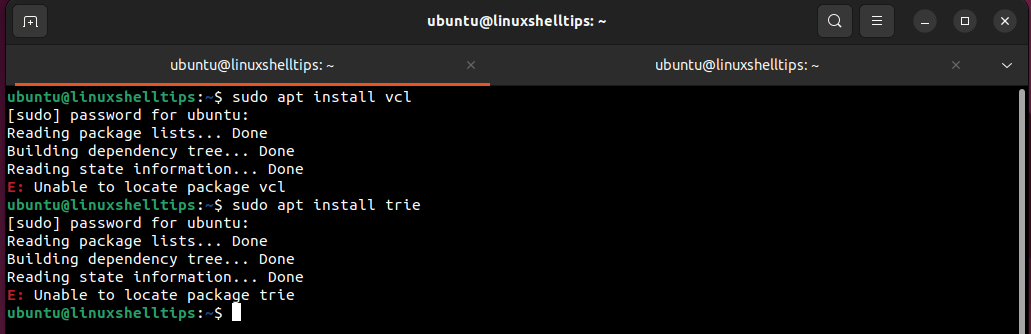
Encountering the “E: Unable to locate package” error can be frustrating for any Linux user, especially on a fresh installation or upgrade to Ubuntu 24.04. This guide provides a comprehensive E: Unable to locate package Ubuntu 24.04 fix, helping you diagnose and resolve this common issue efficiently. We will cover various causes, from simple typos to complex repository problems, ensuring you get your system back on track quickly.
Understanding ‘E: Unable to locate package’ on Ubuntu 24.04
The “E: Unable to locate package” error signifies that the Advanced Package Tool (apt) cannot find the requested software package in its configured sources. This does not always mean the package doesn’t exist. Instead, it indicates a disconnect between your system’s package list and the available repositories. Therefore, understanding its root causes is crucial for an effective E: Unable to locate package Ubuntu 24.04 fix.
What ‘E: Unable to locate package’ Means for Ubuntu Users
For Ubuntu users, this error message is a direct signal that the package manager, APT, failed to locate the specified package. It typically occurs during an apt install command. The system searches its database of available packages, derived from configured software repositories. If the package name isn’t found in this database, the error appears.
This message often points to issues with your system’s package sources. It could also mean a simple typo in the package name. Furthermore, newer Ubuntu versions like 24.04 might have different package names or availability. Therefore, careful investigation is always recommended.
Common Reasons for This Error in Ubuntu 24.04
Several factors can lead to the “E: Unable to locate package” error on Ubuntu 24.04. Identifying the specific reason is the first step towards a successful resolution. Common culprits include outdated package lists, incorrect repository configurations, or even network issues preventing access to package sources.
- Outdated Package Lists: Your system’s local package index might not be synchronized with the remote repositories.
- Incorrect Package Name: A simple misspelling or an incorrect package name is a frequent cause.
- Missing or Disabled Repositories: The necessary repository containing the package might not be enabled or configured.
- Network Connectivity Issues: Your system cannot reach the package servers due to network problems.
- Package Not Available: The requested package might genuinely not exist for Ubuntu 24.04 or has been renamed.
Initial Troubleshooting Steps for Ubuntu 24.04 Package Errors
Before diving into complex solutions, always start with Basic troubleshooting. These initial checks can often provide a quick E: Unable to locate package Ubuntu 24.04 fix. They are simple to perform and can save significant time and effort in the long run.
Verifying Package Name and Spelling Accuracy
A common oversight is a simple typo in the package name. Therefore, always double-check the spelling of the package you are trying to install. You can also search for the package online to confirm its exact name for Ubuntu 24.04. This simple verification step can prevent unnecessary troubleshooting.
For instance, if you are looking for ‘vs-code’, the actual package name might be ‘code’ or ‘code-oss’. Use a search engine or Ubuntu’s package search facility to confirm. A quick search often reveals the correct identifier. This is a crucial first step.
Ensuring Stable Internet Connectivity and DNS Resolution
Your system needs a stable internet connection to fetch package lists and download software. Verify your network connection is active and working correctly. Furthermore, ensure your DNS resolution is functioning properly, allowing your system to resolve repository URLs into IP addresses.
You can test connectivity by pinging a reliable website, like ping google.com. If you experience issues, check your network cables, Wi-Fi connection, or router. DNS problems can often be resolved by changing your DNS servers to public ones like Google’s (8.8.8.8 and 8.8.4.4) or Cloudflare’s (1.1.1.1).
Updating and Refreshing APT Package Lists: A Primary Fix
One of the most frequent solutions for an “E: Unable to locate package” error is to update your local package index. This command refreshes your system’s knowledge of available packages. Consequently, it often provides an immediate E: Unable to locate package Ubuntu 24.04 fix.
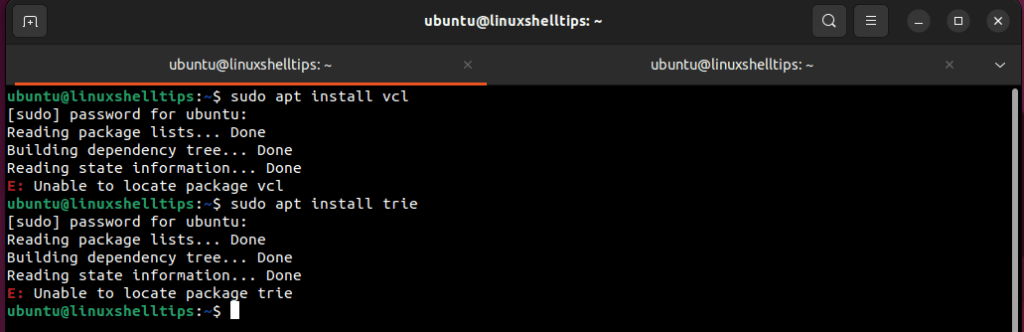
Executing `sudo apt update` Correctly to Fix Package Errors
The sudo apt update command downloads the latest package information from all configured repositories. It does not install new software but updates the list of available packages and their versions. Running this command should always be your next step after verifying basic connectivity.
Open your terminal and execute: sudo apt update. After it completes, try installing your package again: sudo apt install [package-name]. This process synchronizes your local package database, making new or updated packages discoverable. It is a fundamental maintenance task for any Ubuntu system.
Troubleshooting `apt update` Failures and Warnings
Sometimes, sudo apt update itself might fail or show warnings. These failures often point to underlying issues with your repository configurations or network. Look for specific error messages during the update process, such as “Failed to fetch” or “Could not resolve host.”
These messages are critical clues. They can indicate a repository URL is incorrect, a server is down, or a firewall is blocking access. Addressing these specific errors is essential before attempting to install any packages. You might need to inspect your sources.list files further.
Diagnosing and Correcting Repository Configuration Issues
Incorrect or missing repository configurations are a leading cause of the “E: Unable to locate package” error. Your system relies on these configurations to know where to find software. Therefore, properly managing them is vital for an effective E: Unable to locate package Ubuntu 24.04 fix.
Inspecting `/etc/apt/sources.list` and `sources.list.d` Files
The primary configuration files for APT repositories are /etc/apt/sources.list and files within the /etc/apt/sources.list.d/ directory. You should inspect these files for any commented-out lines, incorrect URLs, or disabled repositories. Use a text editor like nano or vi with sudo privileges.
For example, to view the main sources file: sudo nano /etc/apt/sources.list. Look for lines starting with deb or deb-src. Ensure they point to valid Ubuntu 24.04 (Noble Numbat) repositories. Any line starting with a # is commented out and ignored by APT.
Adding Missing or Correcting Incorrect Repository Entries
If you find missing or incorrect repository entries, you will need to add or correct them. For standard Ubuntu repositories, ensure you have entries for main, restricted, universe, and multiverse. Incorrect entries might point to older Ubuntu versions or non-existent URLs. Correcting these is a direct path to an E: Unable to locate package Ubuntu 24.04 fix.
A typical entry for Ubuntu 24.04 looks like: deb http://archive.ubuntu.com/ubuntu/ noble main restricted universe multiverse. Always back up your sources.list file before making changes. After editing, run sudo apt update to apply the changes. You can find official repository information on the Ubuntu Community Help Wiki.
Enabling Essential Repositories: Universe, Multiverse, Restricted
Ubuntu categorizes its software into different repositories based on licensing and support. Many common packages reside in the ‘universe’ or ‘multiverse’ repositories, which are not always enabled by default. The ‘restricted’ repository contains proprietary drivers.
To enable these, you can use the Software & Updates application (search for it in your applications menu). Navigate to the “Ubuntu Software” tab and ensure the checkboxes for “Universe,” “Multiverse,” and “Restricted” are selected. Alternatively, ensure corresponding lines in your sources.list are uncommented. After enabling, always run sudo apt update.
Addressing PPA and Third-Party Repository Problems
Personal Package Archives (PPAs) and other third-party repositories can be excellent sources for newer software or specialized tools. However, they are also a common source of “E: Unable to locate package” errors if misconfigured or incompatible with Ubuntu 24.04. Addressing these is often part of a complete E: Unable to locate package Ubuntu 24.04 fix.
Identifying and Removing Problematic PPAs
PPAs are added to your system via files in /etc/apt/sources.list.d/. If a PPA is causing issues (e.g., it’s no longer maintained, or its server is down), it can prevent apt update from completing successfully. You can identify problematic PPAs by checking the error messages during sudo apt update.
To remove a PPA, use the command: sudo add-apt-repository --remove ppa:user/ppa-name. Alternatively, you can manually delete the corresponding .list file from /etc/apt/sources.list.d/. Always run sudo apt update after removing a PPA.
Verifying PPA Compatibility with Ubuntu 24.04
Not all PPAs are immediately compatible with new Ubuntu releases like 24.04 (Noble Numbat). A PPA designed for an older version might not have packages built for Noble. This incompatibility leads directly to “E: Unable to locate package” errors. Check the PPA’s launchpad page for supported Ubuntu versions.
If a PPA does not explicitly support Ubuntu 24.04, it’s best to disable or remove it. You might need to wait for the PPA maintainer to update their packages for the new release. This careful approach prevents package conflicts and system instability.
Network and DNS-Related Solutions for ‘E: Unable to locate package’
Even if your internet connection seems fine, underlying network or DNS issues can prevent APT from reaching package repositories. These subtle problems require specific troubleshooting steps. Consequently, addressing them is a key part of a robust E: Unable to locate package Ubuntu 24.04 fix.
Flushing DNS Cache and Checking DNS Server Settings
A stale DNS cache can cause your system to try connecting to old or incorrect IP addresses for repository servers. Flushing your DNS cache can resolve this. The method depends on your system’s DNS resolver. For systemd-resolved, use: sudo systemd-resolve --flush-caches.
You should also verify your DNS server settings. Incorrect DNS servers can lead to “Could not resolve host” errors during apt update. You can configure DNS servers in your network settings or by editing /etc/resolv.conf (though this file is often managed by systemd-resolved). Consider using public DNS servers for reliability.
Proxy Server Configurations Affecting Package Access
If you are behind a proxy server, APT needs to be configured to use it. Incorrect proxy settings will prevent your system from accessing external repositories. Check your environment variables (http_proxy, https_proxy) and APT’s configuration files (/etc/apt/apt.conf or /etc/apt/apt.conf.d/).
To set a proxy for APT, you can create a file like /etc/apt/apt.conf.d/01proxy with content such as: Acquire::http::Proxy "http://proxy.example.com:8080/";. Ensure these settings are correct and that the proxy server is accessible. Incorrect proxy configurations are a common reason for failed package operations.
Advanced Fixes When ‘E: Unable to locate package Ubuntu 24.04’ Persists
If the standard troubleshooting steps haven’t worked, you might need to resort to more advanced solutions. These methods delve deeper into APT’s internal workings. They can often provide the final E: Unable to locate package Ubuntu 24.04 fix when other attempts fail.
Cleaning APT Cache and Performing `autoremove`
APT stores downloaded package files in a local cache. Sometimes, this cache can become corrupted or contain outdated information, leading to issues. Cleaning it can resolve such problems. Use sudo apt clean to remove all downloaded package archives from the cache.
Additionally, sudo apt autoremove removes packages that were automatically installed to satisfy dependencies for other packages but are no longer needed. While not directly a fix for “E: Unable to locate package,” it helps maintain system hygiene and can prevent dependency-related issues indirectly.
Reinstalling Core APT Components (Use with Caution)
In rare cases, the APT package manager itself might be corrupted. Reinstalling its core components can fix this. However, this is an advanced step and should be performed with caution, as it affects fundamental system utilities. Make sure you have a backup or a live USB handy.
You can try: sudo apt install --reinstall apt apt-utils. If APT is severely broken, you might need to download the .deb files for these packages manually from the Ubuntu archives and install them using sudo dpkg -i package-name.deb. This is a last resort.
Frequently Asked Questions
Many users have similar questions when facing the “E: Unable to locate package” error. Here are some common queries and their answers, providing further clarity on the E: Unable to locate package Ubuntu 24.04 fix.
Why does `apt update` not always resolve ‘E: Unable to locate package’?
While apt update refreshes your package lists, it only helps if the package exists in your configured repositories. If the package name is wrong, the repository is missing, or there are network issues preventing access to the repository, apt update alone won’t solve the problem. It’s a crucial first step, but not a universal solution.
What if the package is truly unavailable for Ubuntu 24.04?
If a package is genuinely not available for Ubuntu 24.04, you have a few options. You can search for alternative software that performs a similar function. Alternatively, you might look for a PPA or third-party repository that provides the package for Noble Numbat. Compiling the software from source is another, more advanced, possibility. Always verify compatibility before installing.
Is it safe to add untrusted repositories to fix this error?
Adding untrusted or unknown repositories is generally not recommended. These sources might contain malicious software or packages that could destabilize your system. Always prioritize official Ubuntu repositories and well-known, reputable PPAs. If you must use a third-party source, research it thoroughly first. Security should always be a top concern.
Conclusion: Successfully Resolving ‘E: Unable to locate package’ on Ubuntu 24.04
The “E: Unable to locate package” error on Ubuntu 24.04 can be a common hurdle, but it is almost always fixable. By systematically troubleshooting, from verifying package names and network connectivity to correcting repository configurations, you can effectively resolve this issue. Remember, a healthy Ubuntu system relies on well-maintained package sources and regular updates.
Key Takeaways for Maintaining a Healthy Ubuntu 24.04 System
Regularly running sudo apt update is essential for keeping your system’s package lists current. Always double-check package names and ensure your network and DNS are functioning correctly. Furthermore, be mindful of the repositories you add, especially third-party ones, to maintain system stability and security. These practices prevent many common package-related errors.
Call to Action: Share Your Solutions and Stay Updated
We hope this comprehensive guide has helped you find an effective E: Unable to locate package Ubuntu 24.04 fix. Did you discover a unique solution? Share your experiences and tips in the comments below to help other Ubuntu users! Stay tuned for more guides and updates to keep your Ubuntu 24.04 system running smoothly.

3 thoughts on “How To Fix E: Unable To Locate Package Ubuntu 24.04 Fix”