
When developing web applications on Ubuntu 24.04, encountering a PHP Fatal error: Class ‘mysqli’ not found in Ubuntu 24.04 can be a significant roadblock. This error typically indicates that your PHP installation lacks the necessary MySQLi extension, which is crucial for PHP to communicate with MySQL or MariaDB databases. Before diving in, let’s clarify what this specific PHP Fatal error means: your script is trying to use the `mysqli` class, but PHP cannot locate or load it. Fortunately, resolving this issue on Ubuntu 24.04 is usually straightforward, involving a few command-line steps to install and enable the missing extension.
Understanding the ‘mysqli’ Not Found Error on Ubuntu 24.04
The “Class ‘mysqli’ not found” error signifies a fundamental problem with your PHP environment. It means that the PHP interpreter, when executing your script, cannot find the `mysqli` class definition. This class is part of the MySQL Improved Extension, designed to provide an improved interface for interacting with MySQL databases compared to the older `mysql` extension. Modern PHP applications heavily rely on `mysqli` for secure and efficient database operations.This particular error often surfaces after a fresh installation of Ubuntu 24.04, a PHP upgrade, or when deploying a new application. The default PHP installation on Ubuntu systems often comes with core modules, but specific database extensions like `mysqli` might need to be installed separately. Therefore, understanding its root cause is the first step towards a successful resolution.
What Causes ‘Class ‘mysqli’ Not Found’ in Ubuntu 24.04?
The primary cause of the PHP Fatal error: Class ‘mysqli’ not found in Ubuntu 24.04 is the absence of the `php-mysqli` extension. PHP is modular, meaning various functionalities are provided through extensions that can be enabled or disabled. When the `mysqli` extension is not installed or not correctly loaded, any PHP script attempting to use `new mysqli()` will fail.Additionally, version mismatches can also lead to this issue. If you have multiple PHP versions installed, your web server might be using a different PHP version than the one where `php-mysqli` was installed. This scenario requires careful configuration to ensure consistency across your environment.
Common Scenarios Leading to the ‘mysqli’ Error
Several common situations can trigger the “Class ‘mysqli’ not found” error. For instance, a fresh Ubuntu 24.04 server setup often installs PHP without all database extensions by default. You might also encounter this after upgrading your PHP version, as extensions sometimes need reinstallation for the new version.Furthermore, moving an application from a development environment to a production server can expose this issue if the production server’s PHP configuration is less comprehensive. Always ensure your server environment mirrors your development setup as closely as possible.
Verifying PHP and MySQLi Installation Status on Ubuntu 24.04
Before attempting any fixes for the PHP Fatal error: Class ‘mysqli’ not found in Ubuntu 24.04, it is crucial to verify your current PHP and MySQLi installation status. This diagnostic step helps confirm the exact nature of the problem and prevents unnecessary troubleshooting. Knowing your PHP version and which extensions are already active provides valuable context.This verification process involves using command-line tools to query your system’s PHP configuration. It ensures you target the correct PHP version for the `mysqli` extension installation. Incorrectly targeting a different PHP version will not resolve the error.
Checking Your Current PHP Version and Installed Extensions
To check your PHP version, open your terminal and run `php -v`. This command provides details about the PHP version currently active in your command-line interface. Furthermore, to see which PHP modules are enabled, you can use `php -m | grep mysqli`. If this command returns nothing, it strongly suggests the `mysqli` extension is missing or not enabled.Alternatively, creating a `phpinfo.php` file in your web root (`/var/www/html/`) with `` and accessing it through your browser can provide a comprehensive overview. Look for a section titled “mysqli” within the output. Its absence confirms the extension is not loaded.
Confirming MySQL Server Installation and Status
While the error specifically relates to PHP, ensuring your MySQL or MariaDB server is correctly installed and running is also good practice. The `mysqli` extension needs a database server to connect to. You can check the status of your MySQL server with `sudo systemctl status mysql` (for MySQL) or `sudo systemctl status mariadb` (for MariaDB).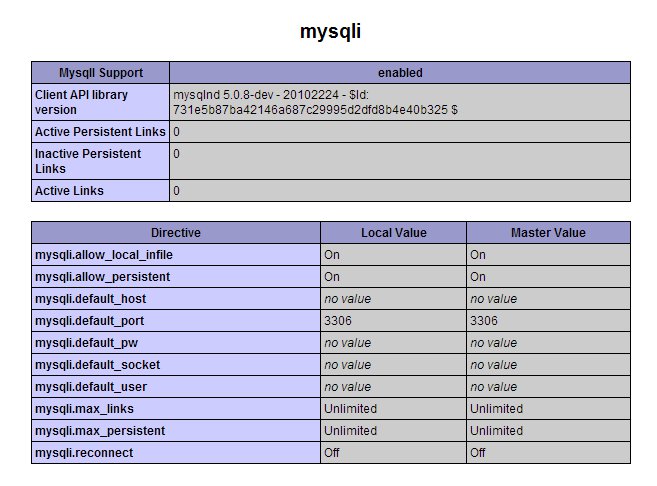
If the database server is not running, start it using `sudo systemctl start mysql` or `sudo systemctl start mariadb`. A healthy database server is a prerequisite for successful `mysqli` connections.
Step-by-Step Guide: Installing the PHP MySQLi Extension
Resolving the PHP Fatal error: Class ‘mysqli’ not found in Ubuntu 24.04 primarily involves installing the correct PHP extension. This process is straightforward using Ubuntu’s `apt` package manager. Following these steps carefully will ensure the `mysqli` extension is properly integrated into your PHP environment.Always ensure you are installing the extension for the PHP version your web server is using. Failure to do so will not fix the error.
Updating System Packages on Ubuntu 24.04
Before installing any new software, it’s always best practice to update your system’s package list and upgrade existing packages. This ensures you have access to the latest versions and dependencies, preventing potential conflicts.Open your terminal and execute the following commands:
sudo apt updatesudo apt upgrade -y
These commands refresh the package index and then upgrade all installed packages to their latest versions, respectively. This step is crucial for system stability.
Installing the `php-mysqli` Package for PHP 8.x/9.x
Once your system is up to date, you can proceed with installing the `mysqli` extension. The package name typically follows the format `phpX.Y-mysqli`, where `X.Y` is your PHP version (e.g., `php8.3-mysqli` for PHP 8.3). If you are unsure of your exact PHP version, refer to the `php -v` output.To install the `mysqli` extension, use the following command (replace `8.3` with your specific PHP version):
sudo apt install php8.3-mysqli -y
This command downloads and installs the `mysqli` extension for the specified PHP version. It also handles any necessary dependencies automatically. After installation, the extension should be enabled by default.
Apache-or-nginx">Restarting Your Web Server (Apache or Nginx)
After installing the `php-mysqli` package, you must restart your web server for the changes to take effect. PHP modules are loaded when the web server starts, so a restart is essential for PHP to recognize the newly installed extension.If you are using Apache, restart it with:
sudo systemctl restart apache2
If you are using Nginx with PHP-FPM, restart both Nginx and PHP-FPM:
sudo systemctl restart nginx
sudo systemctl restart php8.3-fpm (replace `8.3` with your PHP version)
After restarting, your web server will reload PHP with the `mysqli` extension enabled, resolving the PHP Fatal error: Class ‘mysqli’ not found in Ubuntu 24.04.
Troubleshooting Advanced ‘mysqli’ Installation Issues
While the standard installation steps usually resolve the PHP Fatal error: Class ‘mysqli’ not found in Ubuntu 24.04, sometimes more complex issues arise. These can include problems with PHP configuration files, managing multiple PHP versions, or incorrect file permissions. Addressing these advanced scenarios requires a deeper understanding of your PHP environment.Careful attention to detail is necessary when modifying configuration files or dealing with multiple PHP installations. Incorrect changes can lead to other issues.
Enabling the Extension in `php.ini` Configuration
In rare cases, even after installation, the `mysqli` extension might not be explicitly enabled in your `php.ini` file. This is less common with `apt` installations, which usually handle it automatically, but it’s worth checking. The `php.ini` file is PHP’s main configuration file.You can find your `php.ini` file location using `php –ini`. Look for a line like `extension=mysqli.so` (or `extension=php_mysqli.dll` on Windows). If it’s commented out (preceded by a semicolon `;`), uncomment it by removing the semicolon. After editing, always restart your web server.
Managing Multiple PHP Versions and Symlinks
Many developers work with multiple PHP versions. This can complicate matters if your web server is configured to use a different PHP version than where you installed `php-mysqli`. For example, you might install `php8.3-mysqli`, but Apache is still using `php8.1-fpm`.You need to ensure your web server (Apache or Nginx) is configured to use the correct PHP-FPM socket or module for the PHP version where `mysqli` is installed. For Apache, you might need to disable older PHP modules (e.g., `sudo a2dismod php8.1`) and enable the correct one (e.g., `sudo a2enmod php8.3`). For Nginx, verify the `fastcgi_pass` directive in your site’s configuration points to the correct PHP-FPM socket (e.g., `unix:/run/php/php8.3-fpm.sock`).
Permissions and Ownership Checks for PHP Files
Incorrect file permissions or ownership can sometimes prevent PHP from loading extensions or accessing necessary files. While less common for extension loading, it’s a good troubleshooting step if other solutions fail. Ensure your web server user (e.g., `www-data` for Apache/Nginx) has read access to PHP configuration files and extension directories.You can check the permissions of your PHP extension directory (often `/usr/lib/php/20230831/` or similar) and ensure they are readable by the web server user. If necessary, you might temporarily adjust permissions with `sudo chmod -R 755 /path/to/php/extensions` (use with caution and revert if it doesn’t solve the issue).
Testing Your MySQLi Connection After the Fix
After implementing the solutions for the PHP Fatal error: Class ‘mysqli’ not found in Ubuntu 24.04, it is crucial to verify that the `mysqli` extension is now working correctly. A simple test script can confirm successful database connectivity. This step ensures that your application can now interact with your MySQL or MariaDB server without issues.This verification is the final confirmation that your efforts have been successful. It also allows you to catch any remaining configuration problems.
Creating a Simple PHP Test Script for Database Connection
To test your `mysqli` connection, create a small PHP file, for example, `test_db.php`, in your web server’s document root (e.g., `/var/www/html/`). This script will attempt to establish a connection to your database.Here is an example script:
<?php
$servername = "localhost";
$username = "your_db_username"; // Replace with your database username
$password = "your_db_password"; // Replace with your database password
$dbname = "your_database_name"; // Replace with your database name

// Create connection
$conn = new mysqli($servername, $username, $password, $dbname);

// Check connection
if ($conn->connect_error) {
    die("Connection failed: " . $conn->connect_error);
}
echo "<strong>Connected successfully to the database!</strong>";
$conn->close();
?>
Remember to replace `your_db_username`, `your_db_password`, and `your_database_name` with your actual database credentials. Save this file and access it via your web browser (e.g., `http://your_server_ip/test_db.php`).
Verifying Database Connectivity and Error Handling
When you access `test_db.php` in your browser, you should see the message “Connected successfully to the database!” if everything is configured correctly. If you still encounter an error, the `die()` statement in the script will output the specific connection error, helping you diagnose further. Common connection errors include incorrect credentials, database server not running, or firewall issues.This test not only confirms the `mysqli` class is found but also validates your database credentials and network connectivity. It’s a comprehensive check for your database layer.
Best Practices for Secure PHP Database Connections
After successfully resolving the PHP Fatal error: Class ‘mysqli’ not found in Ubuntu 24.04 and establishing a connection, consider best practices for secure database interactions. Always use prepared statements to prevent SQL injection vulnerabilities. Furthermore, store database credentials securely, preferably outside your web root or using environment variables.Additionally, grant your database users only the necessary privileges. For example, a web application user should not have administrative rights. Regularly update your PHP and database server to patch security vulnerabilities. For more information on secure coding practices, refer to the official PHP documentation on MySQLi: PHP Manual: MySQLi Prepared Statements.
Frequently Asked Questions About ‘mysqli’ Errors on Ubuntu 24.04
Users often have similar questions when facing the “Class ‘mysqli’ not found” error. Addressing these common queries can provide further clarity and help prevent future occurrences. Understanding the context of the error is key to efficient troubleshooting.Why is ‘mysqli’ not found after a PHP upgrade to Ubuntu 24.04?
When you upgrade PHP, especially to a major new version like from PHP 7.x to 8.x, the old extensions are not automatically carried over. Each PHP version often requires its own set of extensions to be installed specifically for that version. Therefore, after an upgrade, you must reinstall `php-mysqli` for your new PHP version (e.g., `sudo apt install php8.3-mysqli`).Can I use ‘mysql’ instead of ‘mysqli’ in modern PHP applications?
No, the original `mysql` extension is deprecated and has been removed in modern PHP versions (PHP 7.0 and later). It is highly insecure and lacks modern features. You should always use `mysqli` or PDO (PHP Data Objects) for database interactions in contemporary PHP applications. Using `mysqli` helps prevent the PHP Fatal error: Class ‘mysqli’ not found in Ubuntu 24.04 by ensuring you’re using the correct, supported extension.What if `apt install php-mysqli` doesn’t work or shows errors?
If `apt install php-mysqli` fails, check for several issues. First, ensure your `apt update` and `apt upgrade` commands ran successfully. Second, verify you’re using the correct PHP version in the package name (e.g., `php8.3-mysqli`). Third, check your internet connection. Finally, if you’re using a custom PHP repository, ensure it’s correctly configured and not conflicting with official Ubuntu repositories. Review the error messages from `apt` carefully; they often provide specific clues.Conclusion: Resolving ‘PHP Fatal error: Class ‘mysqli’ not found’ on Ubuntu 24.04
Successfully resolving the PHP Fatal error: Class ‘mysqli’ not found in Ubuntu 24.04 is a common but crucial step for any web developer. This guide has provided a comprehensive walkthrough, from understanding the error’s root causes to detailed installation and troubleshooting steps. By ensuring the `php-mysqli` extension is correctly installed and enabled for your specific PHP version, you can restore your application’s ability to communicate with MySQL databases effectively.Remember to always verify your PHP version, update your system, and restart your web server after making changes. With these steps, you can confidently tackle this common error and ensure your PHP applications run smoothly on Ubuntu 24.04. If you encountered this issue, share your experience or any unique solutions in the comments below!

One thought on “Fix Php Fatal Error: Class ‘mysqli’ Not Found Ubuntu 24.04”